
Safe Exam Browser allows the user to to launch the course contents in a restricted browser i.e a Safe Exam Browser. The student / the user will be able to access the course only if he has provided the necessary credentials to login to the Safe Exam Browser.
Download and Installation
https://safeexambrowser.org/windows/win_usermanual_en.html#download
User Manual reference
https://safeexambrowser.org/windows/win_usermanual_en.html
Pre-conditions
1. OS should be Windows
2. Safe Exam Browser should be installed
3. Credentials / Access keys should be shared with the user
Here is the tracker link for more information - https://tracker.tekdi.net/issues/143180
How to configure and integrate SEB with LMS
1. Assuming a Safe Exam Browser is installed.
2. Go to the installation directory of SEB. Mostly the path would be C:\Program Files (x86)\SafeExamBrowser
3. Click on “SEBConfigTool.exe”
4. SEB Configuration Window will open up.
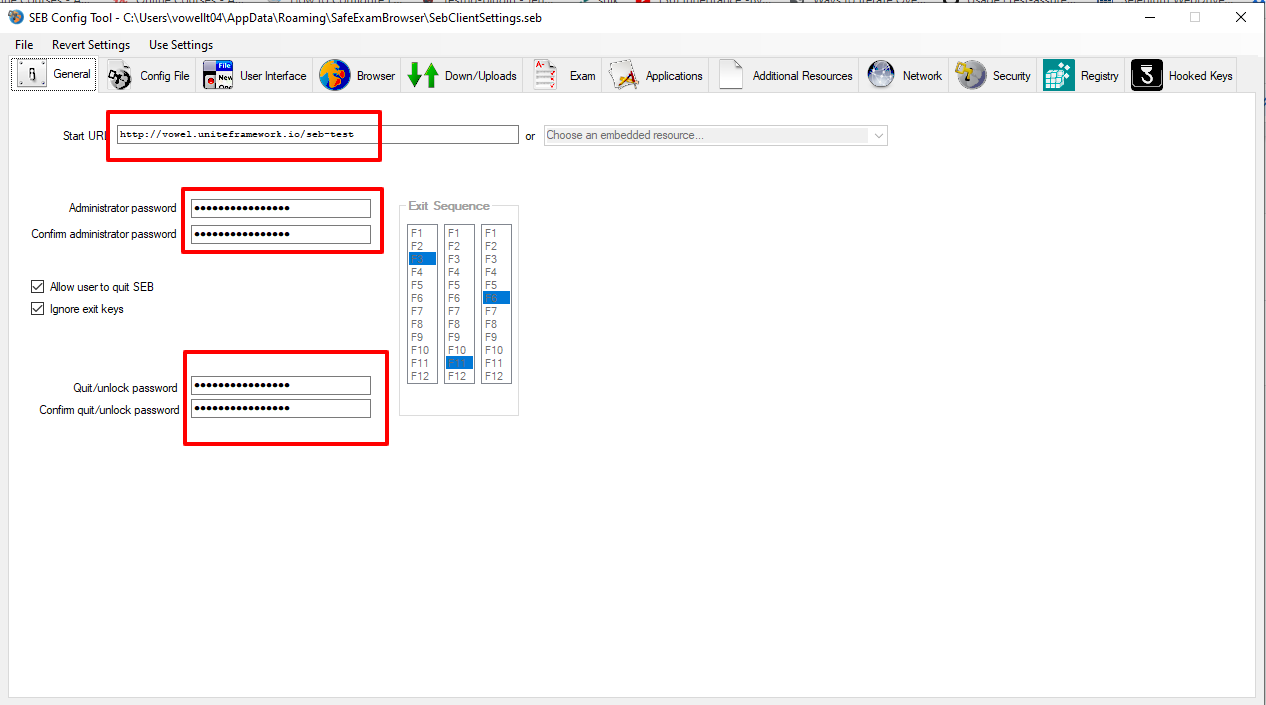
a. General
i. Start URL - This should be your course URL which you like the user to access via SEB.
ii. Administrator Password - This is the password for the configuration file iii. Quit/unlock Password - This Is the password which client would need to unlock the SEB file.
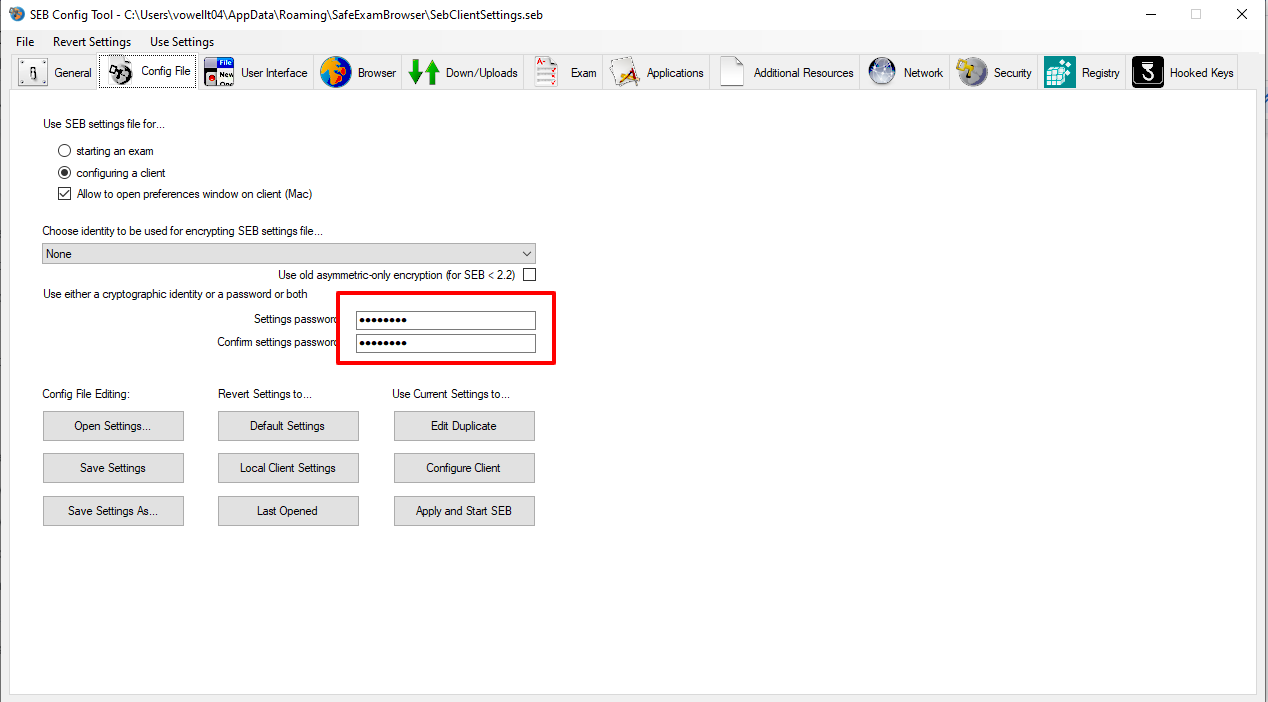
b. Config File
i. Settings password - This is the settings password, which would be
required when you edit your SEB settings.
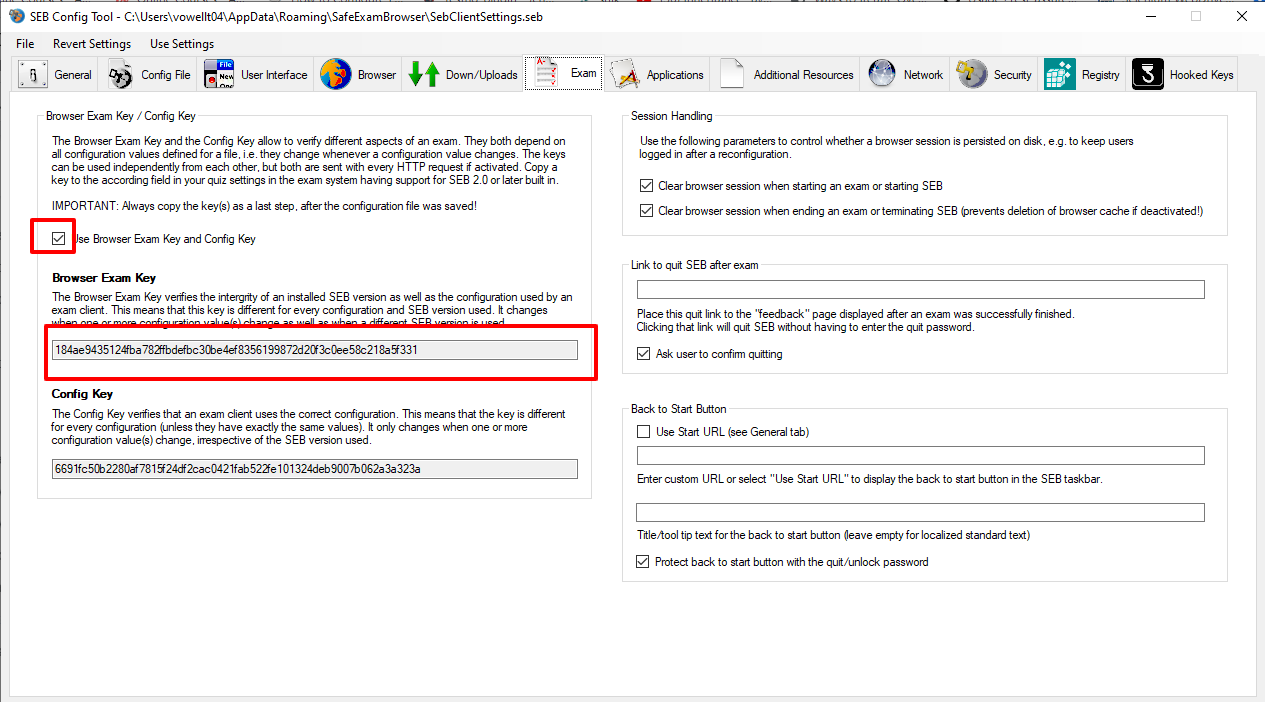
c. Exam
i. Check the check box for “User Browser Exam key and Config key”
1. Copy Browser Exam Key
a. This key should be used in the LMS for integration of SEB.
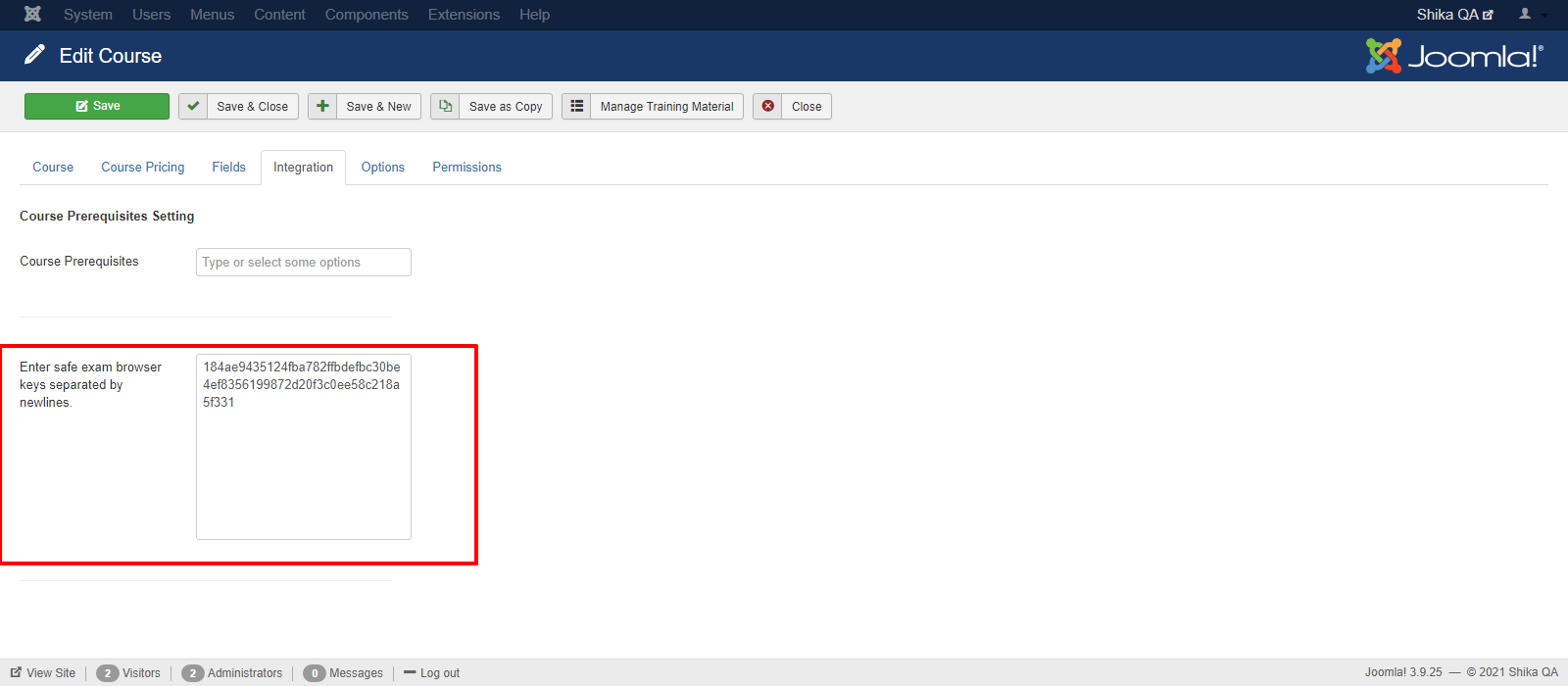
Copy this key and paste it under the “Integration” tab for
“Enter safe exam browser keys separated by newlines” in
the course which you wish the users to access via SEB.
Edit the course and go to Integration tab -
Access the Course via SEB
The configuration file which is configured above, is to be shared with the user who is expected to access the course via SEB. The user will open the file and enter the required credentials to access the Course. In case user reports that he is not able to see the course page of the LMS,
this might be due to the Browser Exam key mismatch which we have copied from “Exam” tab while configuring the SEB (Step 4)